

The Spreadtrum Driver (also known as SPD USB Driver) is important for connecting your Spreadtrum/Unisoc-powered smartphone or tablet to a Windows computer.
However, many users face the issue where the SPD Upgrade Tool / ResearchDownload Tool fails to detect the device in Diag Mode (also called Diagnostic Mode or SPRD U2S Diag). This usually happens due to missing drivers, incorrect connection method, USB port issues, or Windows security restrictions.
How to Fix SPD Tool Diag Mode Not Connecting
Before you begin, ensure you have the necessary prerequisites.
Prerequisites
- A Windows PC (Windows 10 or 11 recommended).
- Latest Spreadtrum/Unisoc USB Driver installed.
- Original or high-quality USB cable.
- Administrator privileges on your computer.
- Your Spreadtrum device with at least 50% battery.
Steps to Fix SPD Tool Diag Mode Not Connecting
- Install or Reinstall the Latest SPD Driver
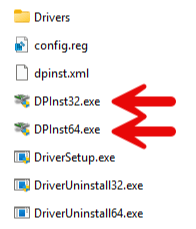
Download and install the latest Spreadtrum Driver using DPInst32.exe or DPInst64.exe (run as Administrator). Restart your computer after installation.
- Prepare the Device for Diag Mode
– Fully power off your Spreadtrum/Unisoc device.
– Open the SPD Upgrade Tool or ResearchDownload Tool and click Start (or Download).
- While the tool shows Waiting for connection…, connect the USB cable to the phone while holding the Volume Down button (try Volume Up or both if Volume Down doesn’t work).
- Check Device Manager
Open Device Manager (Win + X → Device Manager). You should see SPRD U2S Diag or SCI General U2S (AT) under Ports (COM & LPT) without any yellow mark.
- If the device is still not detected, restart your PC in Disable Driver Signature Enforcement mode (Shift + Restart → Troubleshoot → Advanced → Startup Settings → Press 7) and try again.
- Run the SPD Tool as Administrator and try a different USB 2.0 port (avoid USB 3.0/3.1 ports and hubs).
Troubleshooting Tips
- Device not showing in Diag Mode: Try different volume key combinations while connecting. Some devices need Volume Up + Power.
- SPRD U2S Diag shows with yellow exclamation: Reinstall the Spreadtrum Driver or update it to the latest version.
- Tool stuck at Waiting…: Use a different USB cable, switch to another USB port, or try on another Windows PC.
- Windows 11 blocks connection: Disable driver signature enforcement or enable Test Signing Mode temporarily.
- Still facing issues? Remove the battery (if removable), wait 10 seconds, reinsert it, and retry the connection process. Also, ensure the phone is completely powered off before connecting.
