

The Spreadtrum Driver (also known as SPD USB Driver) is important for connecting your Spreadtrum/Unisoc-powered smartphone or tablet to a Windows computer.
However, on Windows 10 and Windows 11, you may encounter the “Windows cannot verify the digital signature for the drivers required for this device” error because newer Windows versions enforce strict driver signing. This guide will help you quickly fix the SPD Driver Signature Error.
How to Fix SPD Driver Signature Error
Before you begin, ensure you have the necessary prerequisites.
Prerequisites
- A Windows PC running Windows 10 or Windows 11.
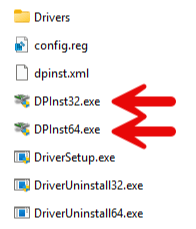
- The Spreadtrum Driver package (with DPInst32.exe / DPInst64.exe).
- Administrator privileges on your computer.
Steps to Fix SPD Driver Signature Error
- Disable Driver Signature Enforcement
Hold the Shift key and click on Restart from the Start menu (or from the login screen).
- After the PC restarts, go to:
Troubleshoot → Advanced options → Startup Settings → Restart. - After a restart, you will see a list of options. Press 7 or F7 on your keyboard to select Disable driver signature enforcement.
- Your computer will boot with driver signature enforcement disabled. Now install the Spreadtrum Driver normally (run DPInst32.exe or DPInst64.exe as Administrator).
- Once the driver is successfully installed, restart your computer normally. The SPD driver should now work without the signature error.
Troubleshooting Tips
- Still getting the signature error: Make sure you turn off signature enforcement before running the installer.
- Windows 11 blocks the installer: Click More info → Run anyway when SmartScreen appears.
- Driver not detected after installation: Restart your PC and connect the Spreadtrum device. Check Device Manager for any yellow exclamation marks.
- Want to re-enable signature enforcement: Restart your computer normally (disabling is temporary) or run
bcdedit /set testsigning off. - Still facing issues? Download the latest SPD Driver package or try installing manually through Device Manager.
